
Style Memory & Pacing Clone
How Vlexor learns your editing habits over time, clones the pacing of any reference video on demand, and offers fifteen ready-made style templates you can apply in one click.
Three sources, one style model
Vlexor's style system is really three different ways of shaping how the AI edits for you, all built on the same underlying record: a style profile carrying a set of pacing rules — average shot length, cut frequency, silence-gap tolerance, zoom intensity, B-roll density, and caption style. One source is implicit and continuous, learning from what you actually do over time. One is explicit and on-demand, analyzing a reference you point it to. One is a fixed, hand-tuned gallery you can apply instantly. Because all three write the same shape of data, a style you picked from the template gallery at onboarding, a channel you asked Vlexor to match last week, and the habits it has picked up from your own commands are all first-class, comparable style profiles under the hood — not three unrelated features bolted together.
- Adaptive Style Memory — implicit, builds up automatically as you use Vlexor
- Pacing Clone — explicit, analyzes a link or written description you provide
- Style Templates — fixed, fifteen pre-analyzed looks you apply with one click
Adaptive Style Memory: learning quietly from your own usage
Every time you send a natural-language command in the editor and Vlexor's Command Engine turns it into an edit plan, the app looks at what that plan actually contains — which caption style it used, how strong the zoom was — and folds that into your personal pacing profile. The first time this happens, it starts from a neutral baseline: a four-second average shot, a moderate cut frequency, a 450-millisecond silence gap, 1.1x zoom, light B-roll, and glass-style captions. From there, each accepted command nudges your saved caption style and zoom intensity toward whatever your plans keep actually using; the rest of the profile only changes once you run a Pacing Clone or apply a template that ships a full rule set of its own. Alongside the merged profile, every one of these commands is also written to a separate style-memory log as a raw event, capturing the same signals plus which effect types the plan used — so there's a fuller history of how your usage evolved even though only caption style and zoom intensity currently feed back into the merged profile itself. None of this ever blocks or fails the command you actually asked for: if a write fails for any reason, your edit still goes through exactly as if learning were switched off.
- Learning is triggered by commands you send in the editor, not by exporting a video on its own
- The neutral starting profile applies until your own usage — or a Pacing Clone or template — replaces it
- A failure anywhere in this flow is swallowed silently; it never surfaces as an error to you
Turning style learning off
Style learning is on by default for every account, controlled by a single toggle — Style learning — in Settings, under the Profile tab. When it is off, Vlexor checks that setting before doing anything else in the learning flow and stops right there: no new signals are recorded, no profile row is touched, and nothing about how your commands are planned or executed changes. Turning it back on does not erase anything that happened before you turned it off, and there is nothing to un-learn from the time it was off either, since nothing was recorded during that window. It simply resumes updating your profile from that point forward, continuing from whichever adaptive profile you had already built up.
Suggestions built from your saved profile
Once you have built up enough history — Vlexor requires at least 10 projects on your account before it will surface anything here — the editor's composer shows a "Suggested from your style" row of chips above the command box, generated directly from the numbers in your most recent adaptive profile: one chip built from your saved caption style, one from the silence-gap length it currently cuts at, and one from the zoom intensity your commands tend to produce. Clicking a chip drops that exact phrase into the command box and focuses it, so you can send it as-is or edit it further first. If you have not crossed the 10-project mark yet, or you have never sent a command that produced a saved adaptive profile, the row simply does not appear — there is no placeholder explaining its absence, it just is not there yet.
Pacing Clone: matching a specific reference on demand
Where Adaptive Style Memory works quietly in the background, Pacing Clone is something you trigger yourself, from two places: the "Attach a reference" field in the editor's composer, and step one of the onboarding wizard the first time you sign up. Either way, you give it a reference — paste a link, or type a written description of a style, such as fast cuts with kinetic captions like an energetic vlog — and it is sent to the pacing-analysis endpoint, which asks Vlexor's frontier model to estimate a full pacing profile from what you gave it: shot length, cut frequency, silence-gap tolerance, zoom intensity, B-roll density, and caption style. Although the composer's field is framed around pasting a link, the check behind it only requires the text to start with http:// or https://, so a link to any hosted video page is treated the same way; anything that is not a URL is instead sent through as a written description, up to 2,000 characters long. If no frontier model is configured for the workspace, or the analysis call fails for any reason, Pacing Clone does not error out on you — it quietly falls back to the same neutral baseline profile Adaptive Style Memory starts new users from, and still saves that as your active reference so the rest of the flow keeps working normally. Every analysis, successful or fallen back, is saved as its own style profile, tagged so it is distinguishable later from your adaptive profile and from a template pick.
- A pasted link does not have to be youtube.com specifically — any http:// or https:// address is accepted the same way
- A written description works exactly like a link — up to 2,000 characters describing the pacing, energy, or caption feel you want matched
- A failed or unconfigured analysis still leaves you with a usable, if generic, reference rather than a dead end
How an applied reference changes your next command
Analyzing a reference does not immediately re-render anything by itself — it sets an active reference in the composer, shown as a chip carrying the source you gave it, and that stays applied until you clear it or replace it with another. When you actually send your next command, Vlexor turns the reference's caption style and zoom emphasis into a short natural-language hint and appends it to whatever you typed, so the combined text — your own instructions plus the style hint — is what the Command Engine actually reads and turns into an edit plan in one pass. That also means an applied reference is not a separate rendering step layered on top of your command; it rides along inside the same request, and it stays active across as many commands as you send afterward until you explicitly clear it from the composer.
Style Templates: fifteen ready-made looks
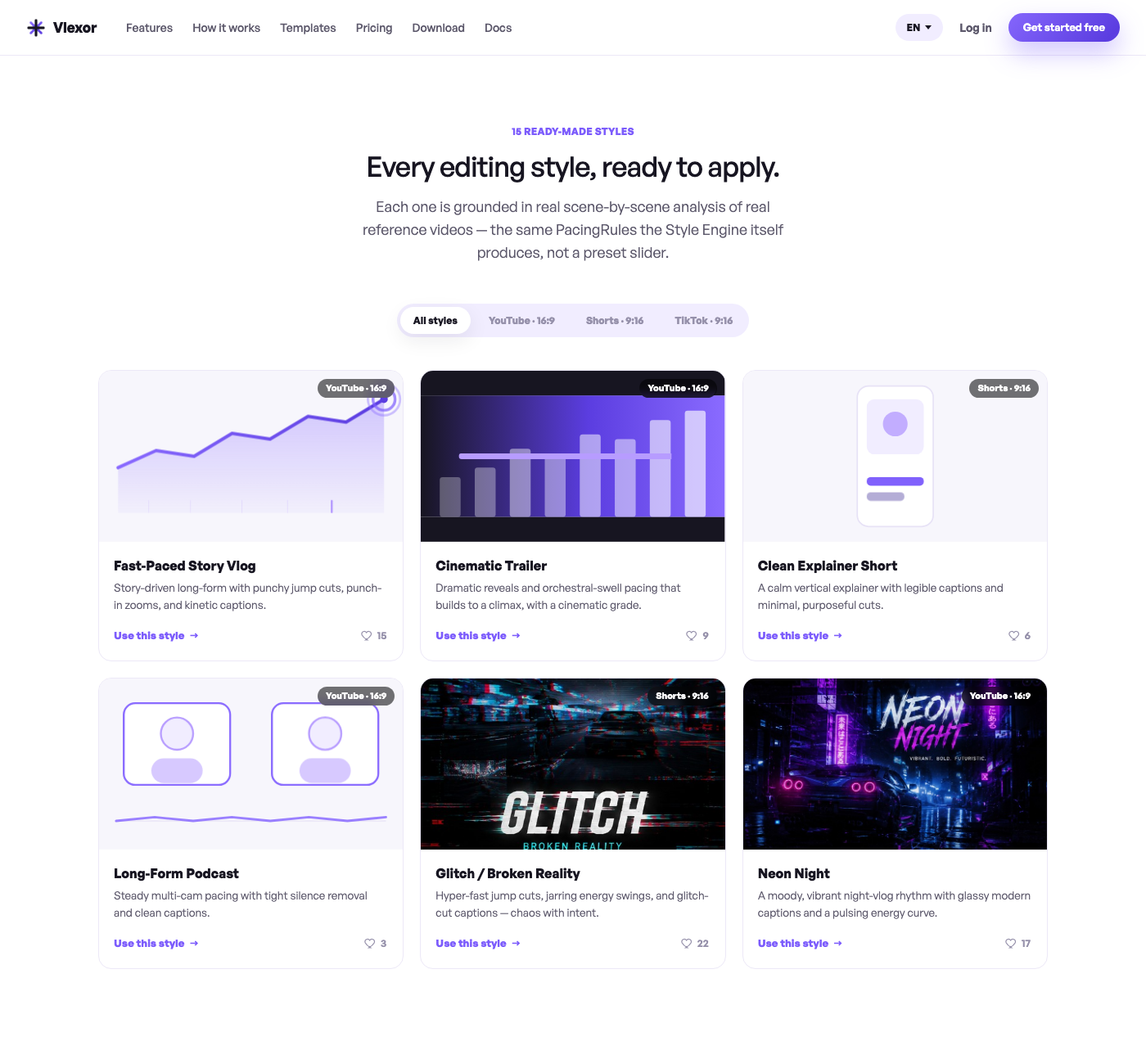
For when you do not have a specific reference in mind, Vlexor ships fifteen Style Templates, each one a complete, hand-tuned pacing profile grounded in real scene-by-scene analysis of an actual reference video rather than an invented preset. They carry the exact same shape of pacing rules Pacing Clone produces, so applying one feeds the same downstream plumbing a freshly analyzed reference would — the only difference is there is no analysis step, because the numbers are already known ahead of time. Each template also targets a specific render preset, so choosing one is implicitly choosing an aspect ratio and platform too. Most gallery thumbnails are hand-authored illustrations that visualize the template's real pacing curve rather than a frame pulled from the footage it was built from; five templates — Glitch / Broken Reality, Cinematic Grunge, Speed Rush, Neon Night, and Emotive Story — instead show real key-art photography. A few of the fifteen:
- Fast-Paced Story Vlog — derived from an eight-minute Arabic investigative vlog; punchy jump cuts, punch-in zooms, and kinetic captions, targeting YouTube's 16:9 format
- Cinematic Trailer — derived from two high-energy game trailers; dramatic reveals and orchestral-swell pacing building to a climax with a cinematic grade, targeting YouTube's 16:9 format
- Clean Explainer Short — derived from a vertical Arabic educational Short; calm narration, legible captions, and minimal, purposeful cuts, targeting the 9:16 Shorts format
- Long-Form Podcast — a common complementary archetype rather than one traced source; steady, multi-cam-style pacing with tight silence removal and clean captions, targeting YouTube's 16:9 format
- See the full gallery of all fifteen at /templates, or inside the composer's "Start from a template" section
Applying a template: onboarding vs. inside the editor
Style Templates show up in two places, and applying one behaves slightly differently depending on where you do it. During onboarding, picking a template and finishing the wizard saves it as a permanent style profile on your account the moment your first project is created — the same way a real Pacing Clone analysis would be saved — so it is already there waiting for you from your very first command. Inside the editor, the same templates appear in a "Start from a template" gallery in the composer; clicking one sets it as your active reference immediately, with no network call at all, since the template's rules already ship with the app. Clicking the same card a second time clears it, the same as clearing any other reference. Either way, once a template is applied it behaves exactly like an analyzed reference from that point on: it folds into a hint on your next command, and stays applied until you clear it or apply something else.
Where this data lives, and who can see it
Every style profile — adaptive, Pacing Clone, or template — is stored the same way, tagged with which of the three produced it, alongside a separate style-memory events log that records the raw signal from each command that contributed to it. Both are scoped by row-level security to the signed-in user who owns them; there is no cross-account visibility, and no admin view into another user's learned style. Deleting your account, from the Danger zone tab in Settings, removes both of these alongside everything else tied to your account, in the same single cascading step as the rest of your data — you never end up with orphaned style history after the account itself is gone.